
Monitor Arms vs Stands: Which Is Better for Ergonomics? (Evidence-Based Guide)
A simple, clinically reviewed guide for office and home workers
Introduction – Why Monitor Arms vs Stands Matters
Monitor arms and stands both lift your screen off the desk, but they offer very different levels of flexibility. Choosing the wrong option can leave you with awkward neck angles, shoulder tension, or limited adjustability – especially once you have optimised your chair, desk height, and keyboard/mouse setup.
Small positioning errors repeated daily can contribute to long-term neck and shoulder strain.
As covered in the monitor ergonomics guide, correct screen height and distance are critical for maintaining neutral posture. Monitor arms provide greater control over these factors than fixed stands, particularly in dynamic work setups.
Research on workstation design shows that adjustable monitor positioning reduces head tilt and neck strain compared to fixed setups (Straker et al., 2008; ISO 9241-5; OSHA, 2020).
Who This Guide Is For
- Anyone deciding between monitor arms vs stands for single or dual monitors
- Readers who have already optimised monitor height but want more flexibility
- Desk workers using sit–stand desks or frequently changing positions
- People experiencing neck or shoulder discomfort from limited screen adjustability
This guide builds on the desk height ergonomics, chair adjustment, keyboard & mouse ergonomics, posture variability, and movement breaks principles.
Quick Wins – Relief in Under 5 Minutes
- Centre your monitor(s) directly in front of you
- Raise the screen so the top is at or slightly below eye level
- Pull the monitor to arm’s length (~50–70 cm)
- Angle screens slightly inward if using two monitors
- Use the same height and distance rules whether sitting or standing
These simple adjustments often reduce neck strain immediately, regardless of whether you use a monitor arm or stand.
Monitor Arms vs Stands for Ergonomics – Key Differences
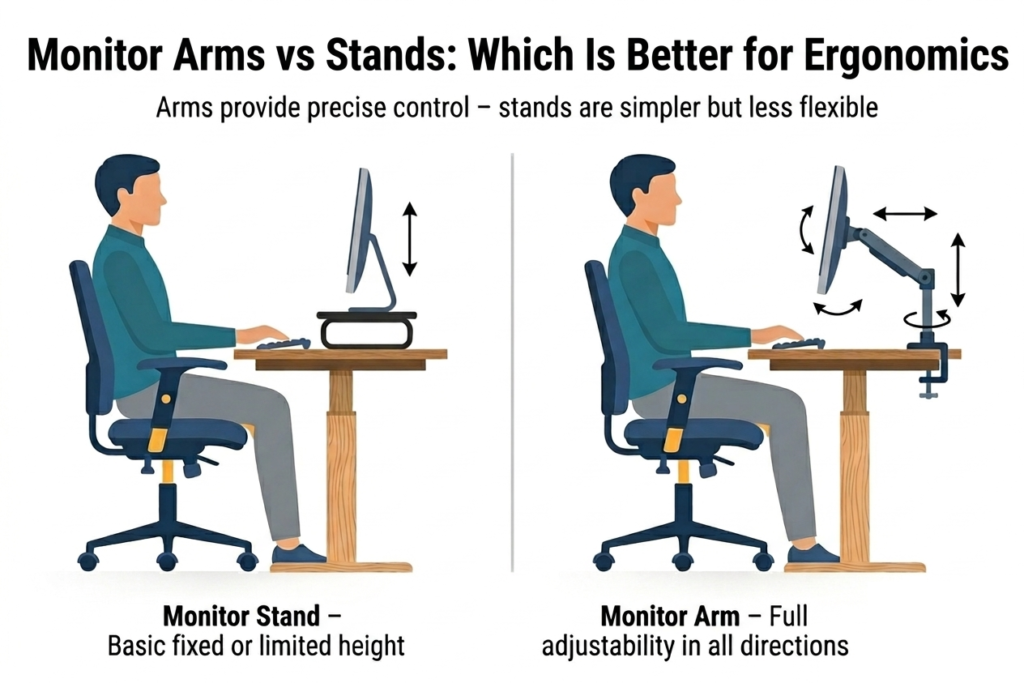
The main difference in monitor arms vs stands for ergonomics is adjustability.
- Monitor arms offer full control: height, depth, tilt, swivel, and rotation
- Monitor stands typically provide fixed or limited height adjustment
This flexibility makes it easier to maintain neutral head and neck posture throughout the day. If you frequently change position, such as switching between sitting and standing, an adjustable monitor arm allows you to keep your screen aligned without compromise.
However, a stand can still be effective in stable setups where minimal adjustment is needed.
Step-by-Step: Monitor Arms vs Stands – How to Choose and Set Up
Step 1: Understand the Core Difference
A monitor arm vs stand ergonomics comparison comes down to movement and control.
Monitor arms allow precise positioning in all directions, while stands are usually static. Greater adjustability helps maintain alignment and reduces strain over time (Straker et al., 2008; OSHA, 2020.
Step 2: Choose the Right Option for Your Needs
Choose a monitor arm if you:
- Want maximum flexibility
- Use dual monitors
- Frequently switch between sitting and standing
Choose a monitor stand if you:
- Have a simple single-monitor setup
- Rarely adjust your position
- Are working within a tighter budget
Monitor arms are not inherently better, but they make ergonomic positioning easier to maintain in dynamic setups.
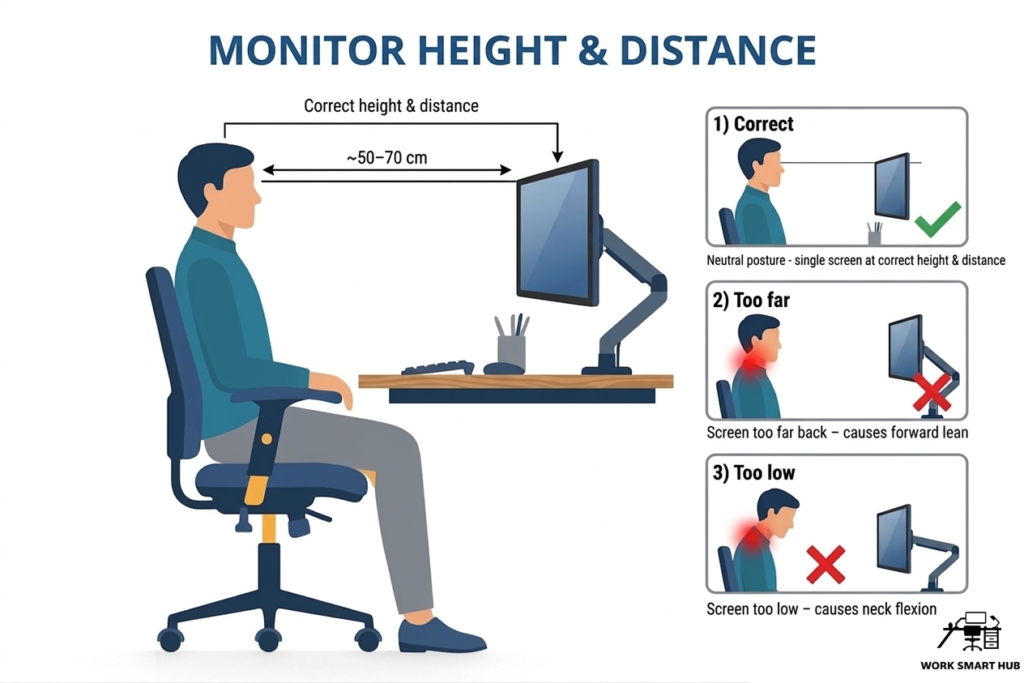
Step 3: Set Correct Height and Distance
Follow the same ergonomic rules regardless of mount type:
- Top of screen at or slightly below eye level
- Distance of ~50–70 cm (arm’s length)
Improper monitor height increases neck flexion and discomfort (Straker et al., 2008).
An adjustable monitor arm makes these settings easier to fine-tune and maintain over time.
Step 4: Position Keyboard and Mouse Correctly
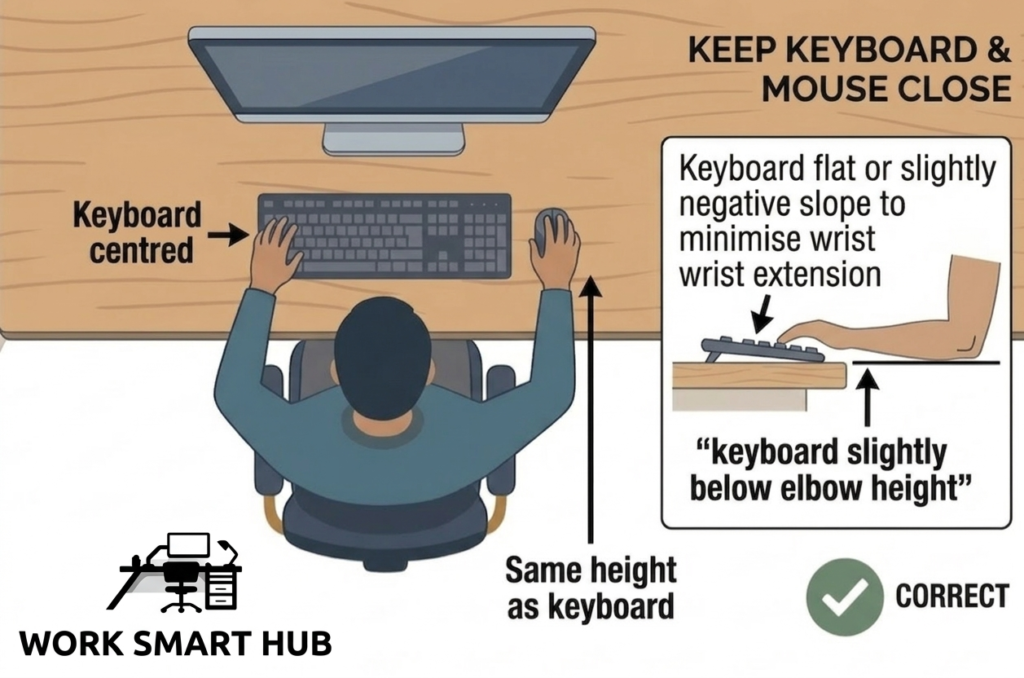
Keep your keyboard and mouse:
- At elbow height
- Close to your body
- Positioned to allow relaxed shoulders
These principles apply whether using monitor arms or stands. Proper input positioning supports overall posture and reduces upper-body strain.
Step 5: Adjust Your Setup Dynamically
The biggest advantage of a monitor arm vs stand setup is the ability to move.
Adjust your monitor when you:
- Change posture
- Switch between sitting and standing
- Change tasks
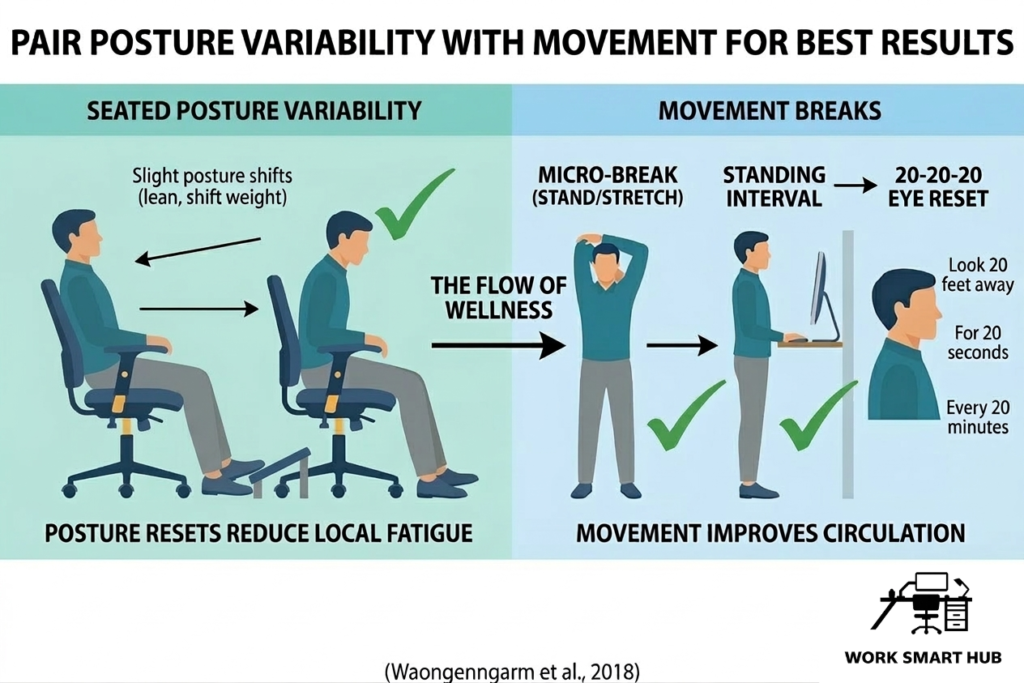
Pair this with posture variability and regular movement breaks for best results.
Static posture, not just poor setup is a major contributor to discomfort.
Common Mistakes to Avoid
- Choosing fixed stands when frequent adjustment is needed
- Mounting monitor arms too far back (causing forward lean)
- Ignoring desk stability – arms can amplify wobble
- Setting uneven heights on dual monitors
- Never adjusting your monitor after initial setup
Frequently Asked Questions
Are monitor arms worth the extra cost?
For many people, yes. They provide flexibility that makes it easier to maintain good posture over time. Stands are sufficient for simple setups.
Do monitor arms work with sit–stand desks?
Yes. Monitor arms are often the better choice because they allow the screen to stay correctly positioned as desk height changes.
Can I use monitor arms with any desk?
Most clamp or grommet arms work with desks 1–10 cm thick. Always check weight limits and ensure your desk is stable.
How do I reduce neck strain with two monitors?
Centre your primary monitor and angle the secondary inward (10–30°). Adjustable monitor arms make this easier to achieve.
What if my monitor arm sags?
Ensure the arm is rated for your monitor’s weight and adjust the tension settings as needed.
Key Takeaways
- Monitor arms vs stands comes down to flexibility – arms provide greater adjustability
- Both options must follow the same ergonomic height and distance principles
- Monitor arms make it easier to maintain neutral posture when changing positions
- Adjustable monitor arms are especially useful for dual monitors and sit–stand setups
- Small, frequent adjustments matter more than the mount type itself
References
ISO 9241-5:2024. Ergonomic requirements for office work with visual display terminals.
Occupational Safety and Health Administration (OSHA). (2020). Computer Workstations eTool. https://www.osha.gov/etools/computer-workstations
Straker, L., Burgess-Limerick, R., Pollock, C., & Egeskov, R. (2008). The impact of computer display height and desk design on 3D posture during information technology work by young adults. Applied Ergonomics. https://doi.org/10.1016/j.apergo.2007.10.002