
How to Adjust Your Office Chair Properly (Evidence-Based Step-by-Step Guide)
A simple, clinically reviewed guide for office and home workers
Why Proper Office Chair Adjustment Matters – Who Benefits and How
Buying an ergonomic office chair is only the first step. If it isn’t adjusted correctly, even a high-quality chair can contribute to lower back pain, neck tension, or shoulder fatigue.
Research shows that prolonged static sitting increases spinal loading and muscle activity in the lower back (Callaghan & McGill, 2001) and reduces natural posture variation, which is linked to discomfort over time (Vergara & Page, 2002).
The good news? Small, evidence-based adjustments can meaningfully change how load is distributed through your spine (De Carvalho & Callaghan, 2023).
This guide explains how to adjust your office chair properly using research-backed ergonomic principles in simple, practical steps so office workers, remote professionals, and hybrid employees can sit comfortably and safely throughout the day. For a complete overview ergonomic home office set-up please see our main guide.
Quick 60-Second Office Chair Check
Based on ISO ergonomic standards (ISO 9241-5) and sitting research:
- Feet flat on the floor
- Hips are level with or slightly higher than knees.
- 2–3 cm space behind knees
- Lumbar support at approximately L3- L4 (belt line)
- Slight recline (100–120°)
- Shoulders relaxed with arm support
If most of these are true, your ergonomic office chair setup is likely appropriate.
Now let’s adjust it properly.
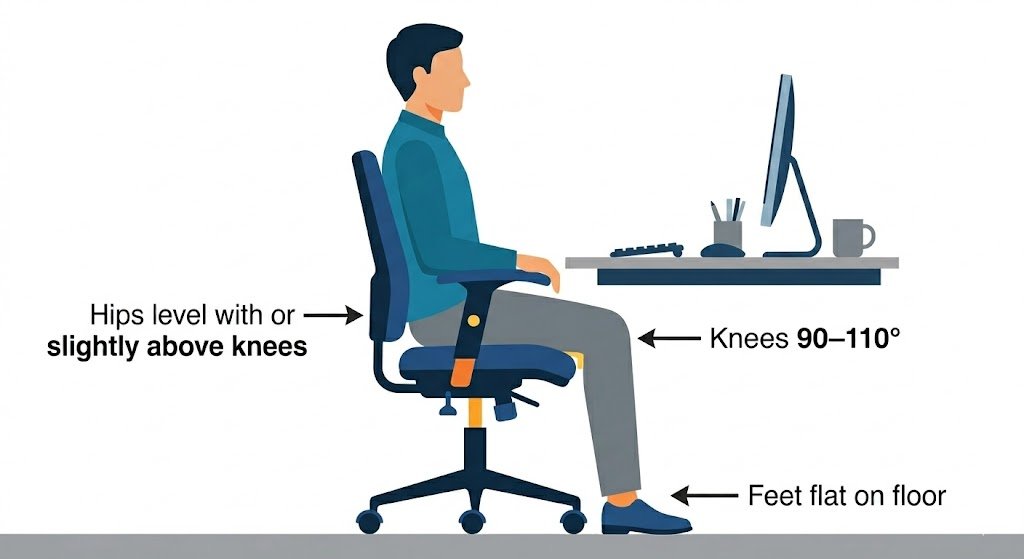
1. Adjust Seat Height First (The Foundation)
Seat height is the most important setting. If it’s wrong, everything else compensates.
What the evidence says
Ergonomic standards recommend feet flat with thighs roughly parallel to the floor (ISO 9241-5).
Research also shows that slightly opening the hip angle (closer to 100–110° rather than exactly 90°) may reduce pressure in the lumbar discs (Andersson et al., 1974; Callaghan & McGill, 2001).
How to adjust seat height
- Sit fully back in your chair.
- Adjust height so:
- Feet rest flat on the floor.
- Knees are about 90–110°.
- Hips are level with or slightly higher than knees.
- Thighs should feel supported, not compressed.
Typical seat height range: 40–55 cm, depending on your height (ISO 9241-5).
If your feet don’t reach the floor, use a footrest. Unsupported feet can encourage slouching (Callaghan & McGill, 2001).
Simple rule: Feet flat. Hips inline or slightly above knees. Comfortable – not forced.
2. Adjust Seat Depth & Pan Tilt
Seat depth affects how well your pelvis stays supported.
Why this matters
If the seat is too deep:
- It presses behind the knees.
- You slide forward.
- You lose lumbar support.
If it’s too shallow:
- Your thighs aren’t supported
- Lower back strain increases.
Excess pressure behind the knee can also reduce comfort during prolonged sitting (Li & Huang, 2021).
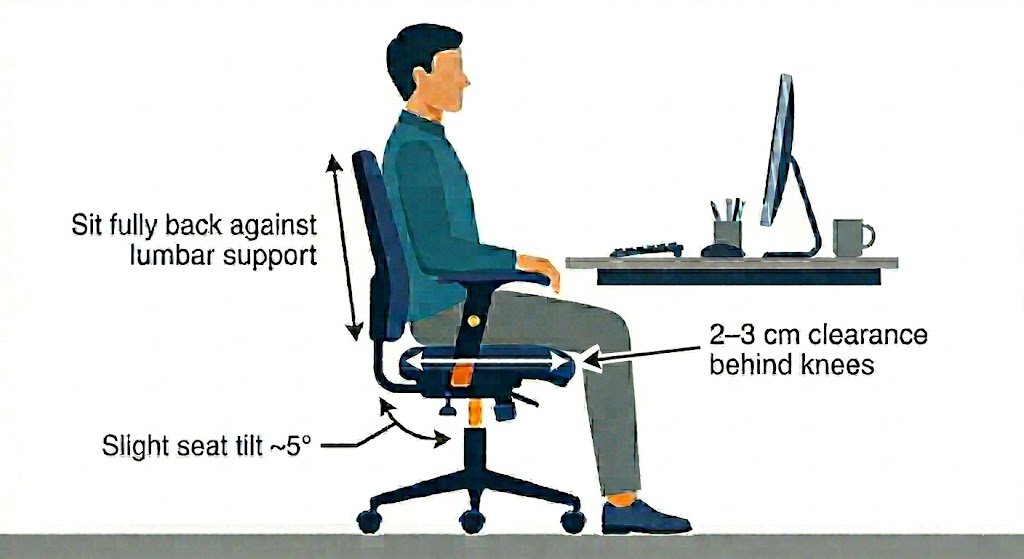
How to adjust seat depth
- Sit fully back against the lumbar support.
- Adjust depth so there is 2–3 cm of space between the seat edge and the back of your knees.
- Thighs should feel supported without pressure at the knee crease.
Most ergonomic chairs fall between 38–45 cm in seat depth.
This small gap improves comfort and circulation while maintaining pelvic support (Li & Huang, 2021).
What About Seat tilt?
Some chairs allow forward tilt.
Research suggests a slight forward tilt (~5°) may reduce lumbar flexion for some people (De Carvalho & Callaghan, 2023). However, too much tilt increases thigh pressure (Li & Huang, 2021).
Recommendation:
Neutral or slight tilt is appropriate for most desk work. Prioritise height and depth first.
3. Set Lumbar Support Properly
Lumbar support helps maintain the natural curve of your lower back.
What research shows
Studies show adjustable lumbar support can reduce lower back flexion and improve perceived comfort (De Carvalho & Callaghan, 2023).
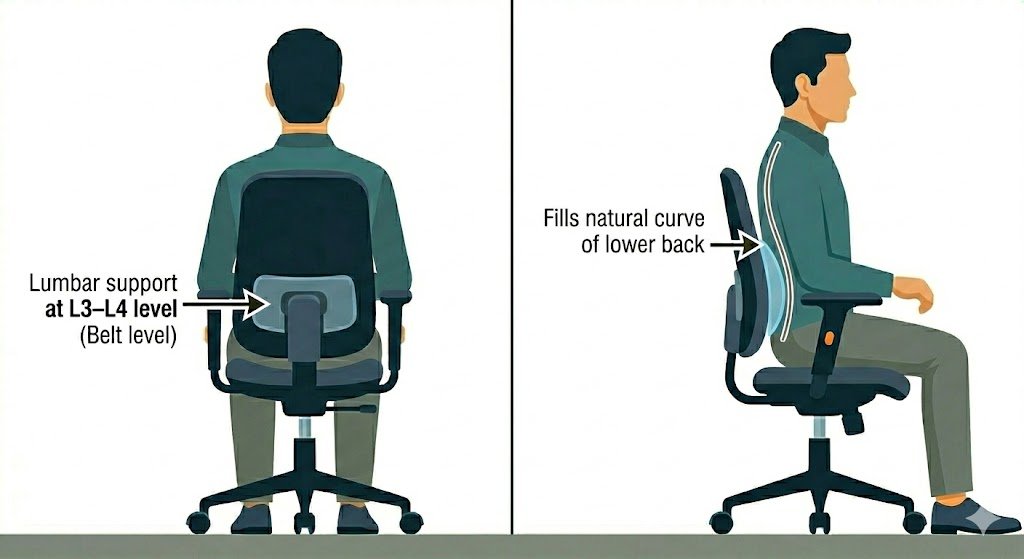
Users tend to prefer lumbar support positioned around the L3–L4 level – roughly belt-line height (Coleman et al., 1998).
How to adjust lumbar support
- Position it at belt-line level.
- It should gently fill the curve of your lower back.
- It should not push you forward
Typical comfortable depth: 2–5 cm protrusion.
If it feels aggressive or tiring, it’s too much.
Lumbar support should feel supportive — not noticeable after a few minutes.
4. Adjust Backrest Recline (Don’t Lock at 90°)
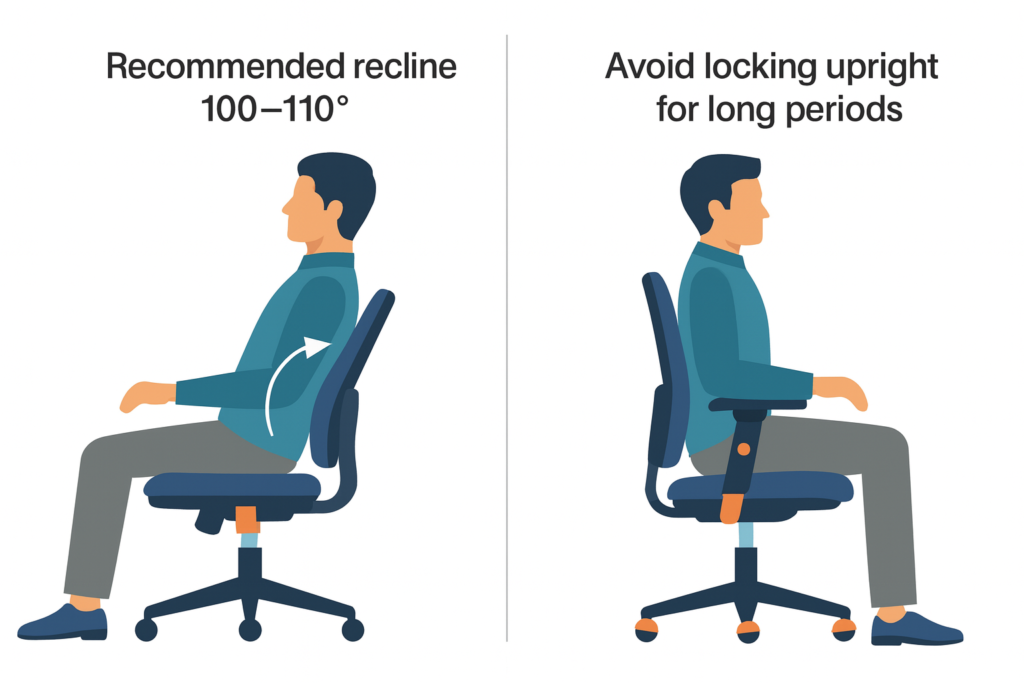
Many people lock their chair upright at 90°. Research suggests this isn’t ideal.
What the evidence says
Classic spinal pressure studies show that slightly reclined sitting reduces lumbar disc pressure compared to upright sitting (Andersson et al., 1974).
Static postures increase tissue loading over time (Callaghan & McGill, 2001).
Small posture changes improve comfort (Vergara & Page, 2002).
How to adjust recline
- Set backrest between 100–120°.
- Maintain contact with lumbar support.
- Avoid staying locked upright for hours.
- Change position regularly.
There is no perfect angle – movement matters more than precision.
5. Adjust Armrests to Reduce Shoulder Tension
Armrests directly affect shoulder and neck muscle activity.
Why this matters
Improper armrest height increases upper trapezius muscle activity during computer tasks (Vergara & Page, 2002).
Proper forearm support reduces shoulder load when desk height is appropriate.
How to adjust armrests
- Elbows around 90–100°.
- Shoulders relaxed (not shrugged).
- Forearms lightly supported.
- Armrests close to your body.
- They should not stop you from getting close to your desk.
Typical armrest height: 20–30 cm above the seat pan.
If your shoulders feel tense after adjusting them, they are likely too high.
Frequently Asked Questions
Do I Need a Headrest?
For upright typing, a headrest is not essential.
Some evidence suggests headrests reduce neck muscle activity when reclining, but benefits are limited for active desk work.
Lumbar support and armrests have stronger evidence for everyday computer use.
What If My Chair Doesn’t Have These Adjustments?
Prioritise:
- Seat height
- Lumbar support
- Foot support
Even partial adjustment improves comfort and spinal load distribution (De Carvalho & Callaghan, 2023).
How often should I readjust my chair?
Dynamic sitting is healthier than static posture.
Reassess every few weeks or whenever discomfort appears. Small daily tweaks maintain optimal posture.
Key Takeaways
- Adjust seat height first – feet flat, hips inline or slightly above knees
- Maintain 2–3 cm knee clearance from seat base.
- Align lumbar support at belt-line height.
- Recline slightly (100–120°).
- Adjust armrests to keep shoulders relaxed.
- Change positions regularly.
An ergonomic office chair supports your body but movement remains essential.
References
- Andersson, B. J., Ortengren, R., Nachemson, A., & Elfström, G. (1974). Lumbar disc pressure and myoelectric back muscle activity during sitting. I. Studies on an experimental chair. Scandinavian Journal of Rehabilitation Medicine, 6(3), 104–114. https://pubmed.ncbi.nlm.nih.gov/4417801/
- Callaghan, J. P., & McGill, S. M. (2001). Low back joint loading and kinematics during standing and unsupported sitting. Ergonomics, 44(3), 280–294. https://doi.org/10.1080/00140130118276
- COLEMAN, N., HULL, B. P., & ELLITT, G. (1998). An empirical study of preferred settings for lumbar support on adjustable office chairs. Ergonomics, 41(4), 401–419. https://doi.org/10.1080/001401398186900
- De Carvalho, D. E., & Callaghan, J. P. (2022). Effect of office chair design features on lumbar spine posture, muscle activity and perceived pain during prolonged sitting. Ergonomics, 66(10), 1–12. https://doi.org/10.1080/00140139.2022.2152113
- ISO 9241-5:2024. Ergonomic requirements for office work with visual display terminals.
- Li, J., & Huang, Y. (2021). Subjective Preferences and Discomfort Ratings of Backrest and Seat Pan Adjustments at Various Speeds. Applied Sciences, 11(4), 1721–1721. https://doi.org/10.3390/app11041721
- Vergara, M., & Page, Á. (2002). Relationship between comfort and back posture and mobility in sitting-posture. Applied Ergonomics, 33(1), 1–8. https://doi.org/10.1016/s0003-6870(01)00056-4