
Office Lighting Ergonomics: Reduce Eye Strain & Headaches
A simple, clinically reviewed guide for office and home workers
Introduction – Why Office Lighting Ergonomics and Eye Comfort Matter
Long hours at a desk often leave people with tired eyes, headaches, dry eyes, or a stiff neck. Poor lighting is usually the hidden cause. When glare makes the screen hard to read, or the room is too dim, you squint, lean forward, or tilt your head — all of which add extra strain to your neck and shoulders.
Research shows that screen glare and unbalanced lighting contribute to digital eye strain, headaches, and changes in neck posture (Gowrisankaran & Sheedy, 2015; Coles-Brennan et al., 2019). Fixing your office lighting helps protect your eyes and supports the neutral posture you’ve already set up with your chair, desk, monitor, keyboard, and mouse.
Who this guide is for
- Office workers and remote professionals
- Students spending long hours on screens
- Anyone dealing with eye strain, headaches, or neck discomfort at their desk
This article builds on our earlier Healthy and Ergonomic Home Office Guide and gives you simple, evidence-based steps to create comfortable lighting fast.
Quick Fixes — Relief in Under 2 Minutes
Try these instant adjustments before changing anything permanent:
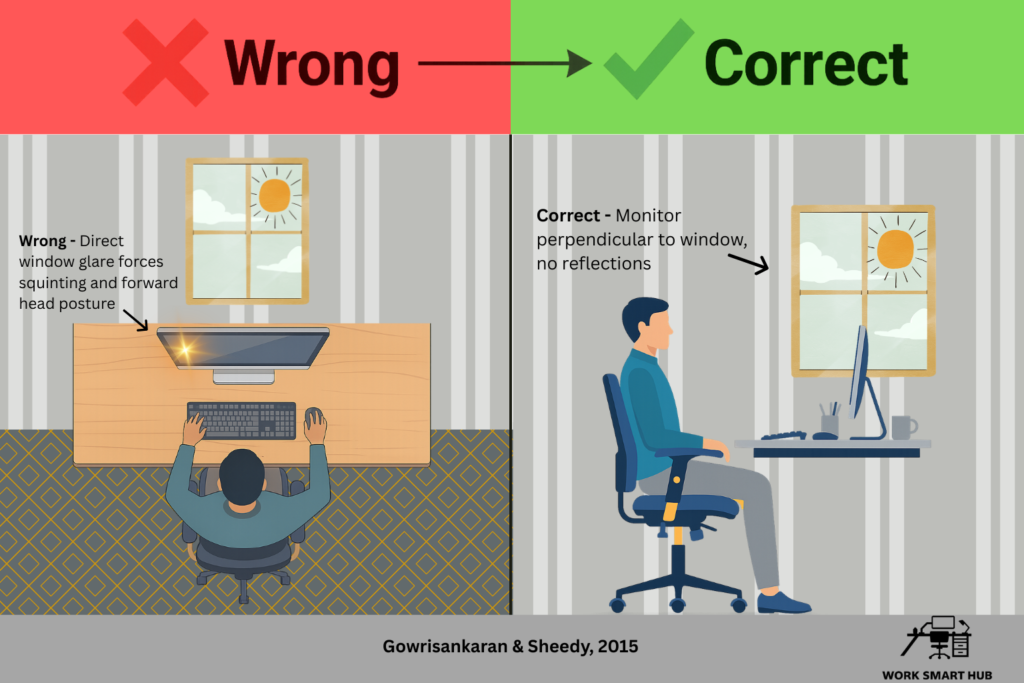
- Turn your monitor 90° away from bright windows
- Dim or reposition overhead lights that cause reflections
- Increase text size or zoom level instead of leaning closer
- Close curtains or blinds during strong sunlight
- Follow the 20-20-20 rule: every 20 minutes, look at something 20 feet away for 20 seconds (American Optometric Association, n.d.)
Most people feel a difference within one workday.
4-Step Setup for Better Lighting and Eye Comfort
Step 1: Position Your Monitor to Minimise Glare
Place your monitor so windows are to the side — never directly in front or behind. Light reflecting off the screen forces you to squint or lean forward, adding neck strain and visual fatigue (Gowrisankaran & Sheedy, 2015).
See our monitor ergonomics guide for more on screen tilt and positioning.
Quick fix if you can’t move the desk: Use sheer curtains, blinds, or a small monitor hood.
Step 2: Choose the Right Type of Lighting
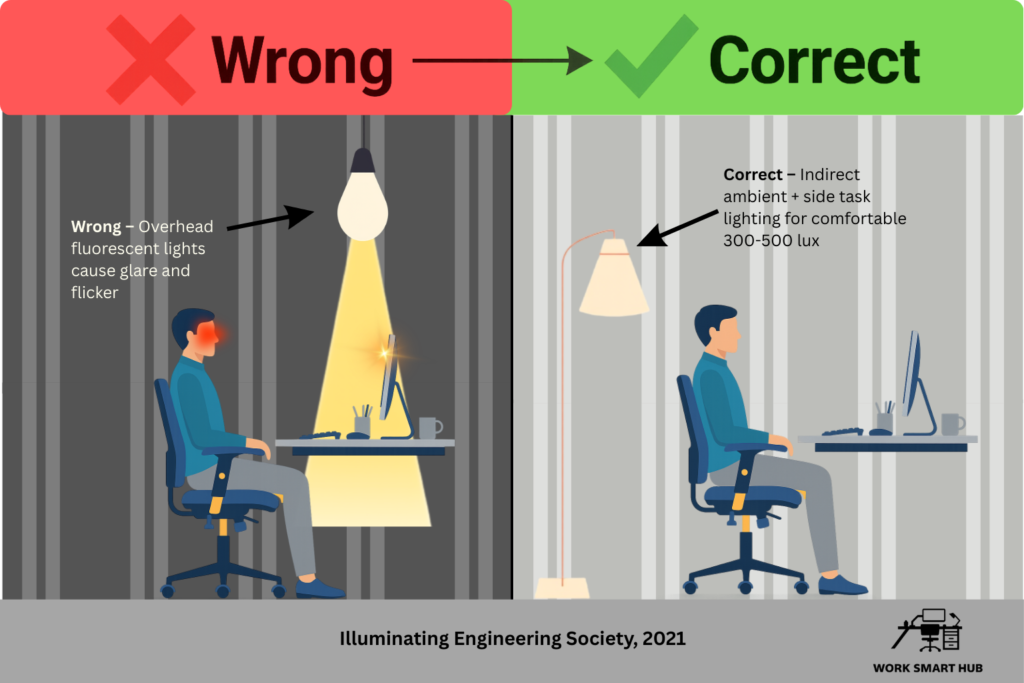
Skip harsh overhead fluorescent lights – they create glare and subtle flicker that tires your eyes.
Instead, build a mix of:
- Filtered natural light
- Indirect ambient lighting (floor lamps or wall sconces)
- Targeted task lighting (adjustable desk lamp to the side, never behind the screen)
Aim for bright, comfortable desk lighting – roughly as bright as a well-lit office or a cloudy day indoors (Illuminating Engineering Society, 2021).
A dim living room is usually only 100–150 lux (too low), while a good reading lamp or balanced desk setup hits 300–500 lux (clear and comfortable without glare).
Easy ways to check without a light meter:
- Hold a white sheet of paper under your desk lamp – it should look crisp and bright, not shadowy or blinding.
- Point your phone camera (no flash) at the desk – the preview should look naturally lit, not too dark or washed out.
- Feel test: You should read small text comfortably for 20–30 minutes without your eyes getting tired quickly.
Step 3: Match Screen Brightness to the Room
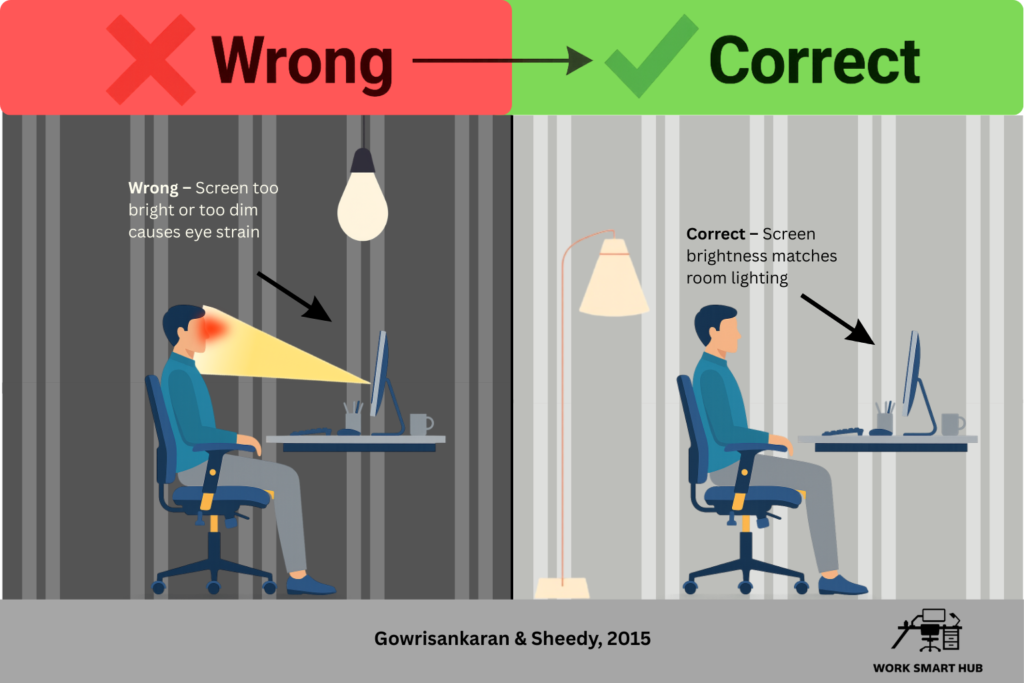
Set your monitor brightness to match the room light. A screen that’s too bright in a dark room or too dim in bright daylight makes your eyes work harder and can contribute to visual fatigue (Gowrisankaran & Sheedy, 2015; Coles-Brennan et al., 2019).
Rule of thumb: The screen should feel like a piece of white paper under the same lighting.
Step 4: Add Anti-Glare Solutions
- Use a matte screen protector or anti-glare filter
- Tilt the monitor slightly upward (10–20°) to bounce reflections away from your eyes (Sheedy et al., 2003)
- Wipe the screen regularly – dust and fingerprints make glare worse
Common Mistakes to Avoid
- Desk facing a bright window (constant glare)
- Relying only on overhead fluorescent lights (reflections and flicker)
- Leaning forward to see small text instead of zooming or increasing font size
- Using desk lamps that shine directly onto the screen
Frequently Asked Questions
Should I use blue-light glasses or filters?
They can help at night, but they don’t fix glare or poor room lighting. Good positioning and balanced light are usually more effective for reducing digital eye strain (Coles-Brennan et al., 2019).
Is natural light always best?
Yes – when controlled. Direct sunlight creates glare; soft, indirect natural light is ideal.
What if I work at night?
Use warm (2700–3000K) indirect lighting and keep brightness low. Avoid bright overhead lights.
Do curved monitors reduce glare?
They can help slightly with edge reflections, but correct positioning and lighting matter more.
Key Takeaways
- Poor lighting forces awkward neck and eye positions, adding to strain (Gowrisankaran & Sheedy, 2015)
- Simple fixes – monitor placement, indirect lighting, and anti-glare tools – bring fast relief
- Good lighting supports the neutral posture you’ve created with your chair, desk, monitor, keyboard, and mouse
- Small daily adjustments help prevent long-term eye fatigue and headaches
References
- American Optometric Association. (n.d.). Computer vision syndrome and the 20-20-20 rule. https://www.aoa.org/healthy-eyes/caring-for-your-eyes/20-20-20-rule
- Coles-Brennan, C., Sulley, A., & Young, G. (2019). Management of digital eye strain. Clinical and Experimental Optometry, 102(1), 18–29. https://doi.org/10.1111/cxo.12798
- Gowrisankaran, S., & Sheedy, J. E. (2015). Computer vision syndrome: A review. Work, 52(2), 303–314. https://doi.org/10.3233/WOR-152162
- Illuminating Engineering Society. (2021). The Lighting Handbook (10th ed.). Illuminating Engineering Society. https://www.ies.org/product/the-lighting-handbook-10th-edition/
- Sheedy, J. E., Hayes, J., & Engle, J. (2003). Is all asthenopia the same? Optometry and Vision Science, 80(11), 732–739. https://doi.org/10.1097/00006324-200311000-00008