
Keyboard & Mouse Ergonomics: Reduce Wrist & Shoulder Strain (2026 Guide)
A simple, clinically reviewed guide for office and home workers
Introduction – Who This Guide Is For & Why Keyboard & Mouse Ergonomics Matters
If you spend long hours typing or using a mouse, you’ve likely experienced hand, wrist, shoulder, or neck discomfort. These aches may start mild but can become chronic over time, reducing productivity, focus, and overall well-being.
Often, the solution isn’t just stronger muscles – it’s where your keyboard and mouse are positioned relative to your body.
Keyboard and mouse placement affects wrist extension, forearm rotation, and shoulder muscle load (Gerr et al., 2002). When keyboards or mice are too high, too far, or misaligned, muscles activate more, increasing fatigue and discomfort.
This guide explains how to set up your keyboard and mouse using practical, evidence-based ergonomic steps the same approach used in our desk height and chair adjustment articles.
Who this is for:
• Office workers
• Remote professionals
• Students
• Anyone spending prolonged time at a computer
Quick Keyboard & Mouse Checks – Fast Relief Tips
Before adjusting anything, go through these quick self-checks:
| Check | Target |
| Wrists neutral | Straight in line with forearms |
| Elbows relaxed | ~90°, close to your sides |
| Shoulders relaxed | Not elevated or tense |
| Keyboard close | Minimise reach forward |
| Mouse next to keyboard | Easy lateral reach |
If any of these feel uncomfortable, your setup may be suboptimal. Correcting them can relieve tension instantly.
4-Step Ergonomic Setup
Step 0: Start With Your Chair (Foundational Alignment)
Before setting keyboard or mouse position, start with your chair. Poor chair alignment forces compensations in your arms and shoulders.
Why it matters:
Research shows that chair position dictates your elbow, forearm, and shoulder alignment . If your chair is too low, you elevate your shoulders. Too high, and wrists may extend awkwardly.
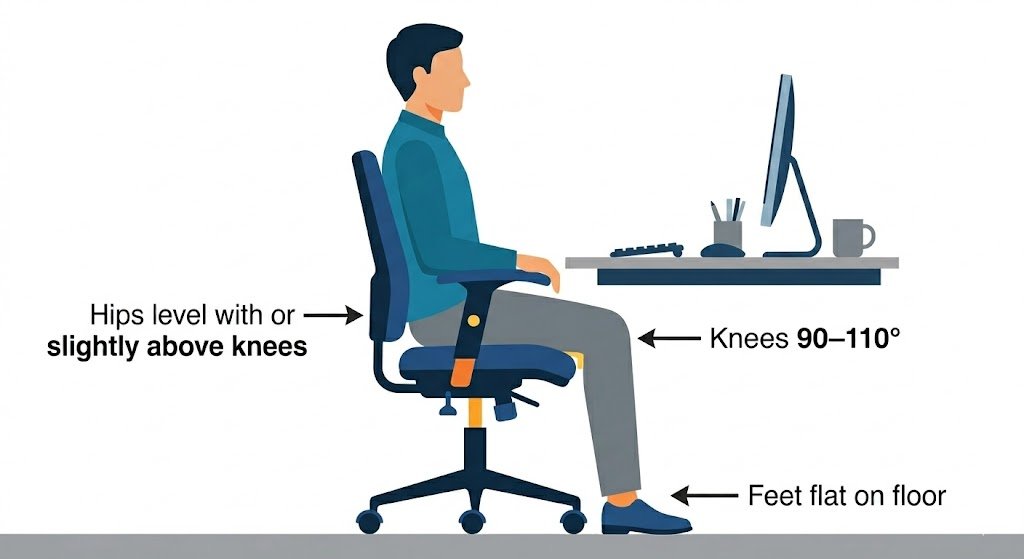
How to adjust your chair (ISO 9241-5):
- Sit fully back in your chair
- Adjust so:
- Feet rest flat on the floor.
- Knees are about 90–110°.
- Hips are level with or slightly higher than knees.
- Thighs should feel supported, not compressed.
See this full guide: How to Adjust Your Office Chair
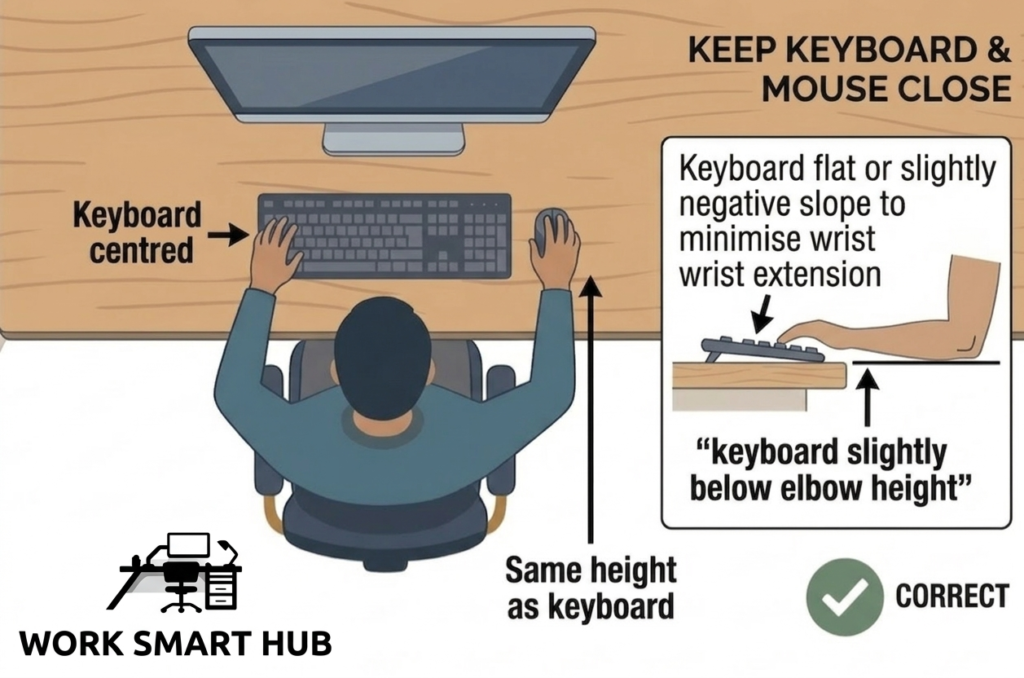
Step 1: Keep Keyboard & Mouse Close
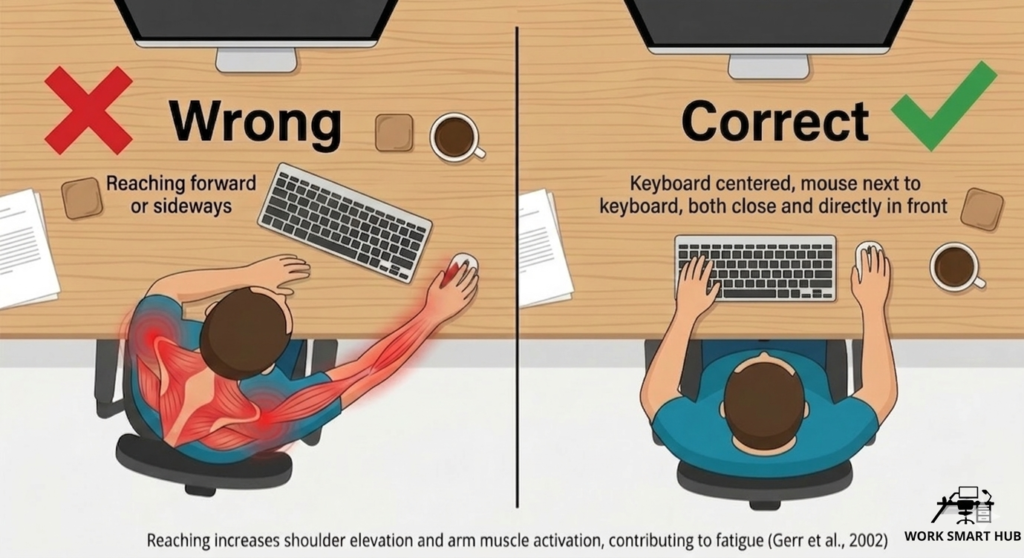
Evidence: Reaching increases shoulder elevation and arm muscle activation, contributing to fatigue (Gerr et al., 2002).
How to do it:
• Bring keyboard and mouse within easy reach
• Keep both devices directly in front of you
• Avoid reaching forward or sideways
Watch Out For: If your keyboard or mouse drifts too far forward or to the side over time, you’ll unconsciously reach – which is one of the most common hidden causes of shoulder and upper arm fatigue. Reset position every hour if needed.
Step 2: Maintain Neutral Wrists
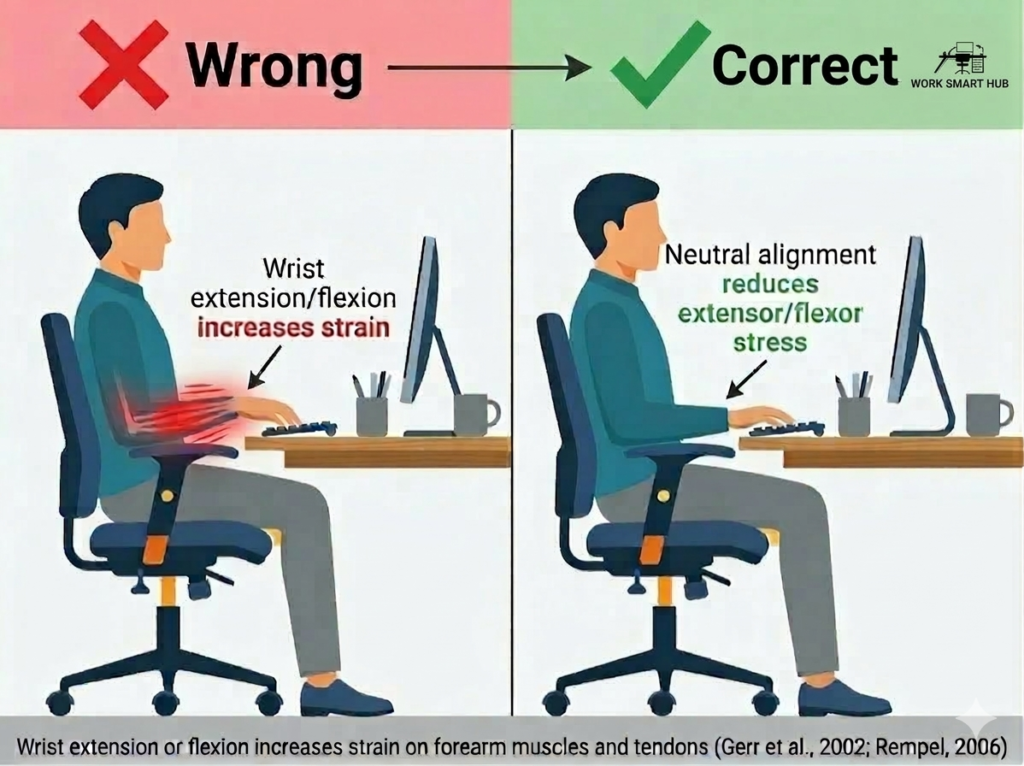
Evidence: Wrist extension or flexion increases strain on forearm muscles and tendons (Gerr et al., 2002; Rempel, 2007).
Practical tips:
• Keep wrists straight, aligned with forearms
• Type with light contact (don’t rest wrists heavily on the desk)
• Consider split or ergonomic keyboards if neutral alignment is difficult
Watch Out For: Avoid over-reliance on wrist rests — they can actually push wrists into extension if used during active typing. Use them only as a palm rest between typing bursts to support neutral posture.
Step 3: Keep Elbows Relaxed by Your Sides
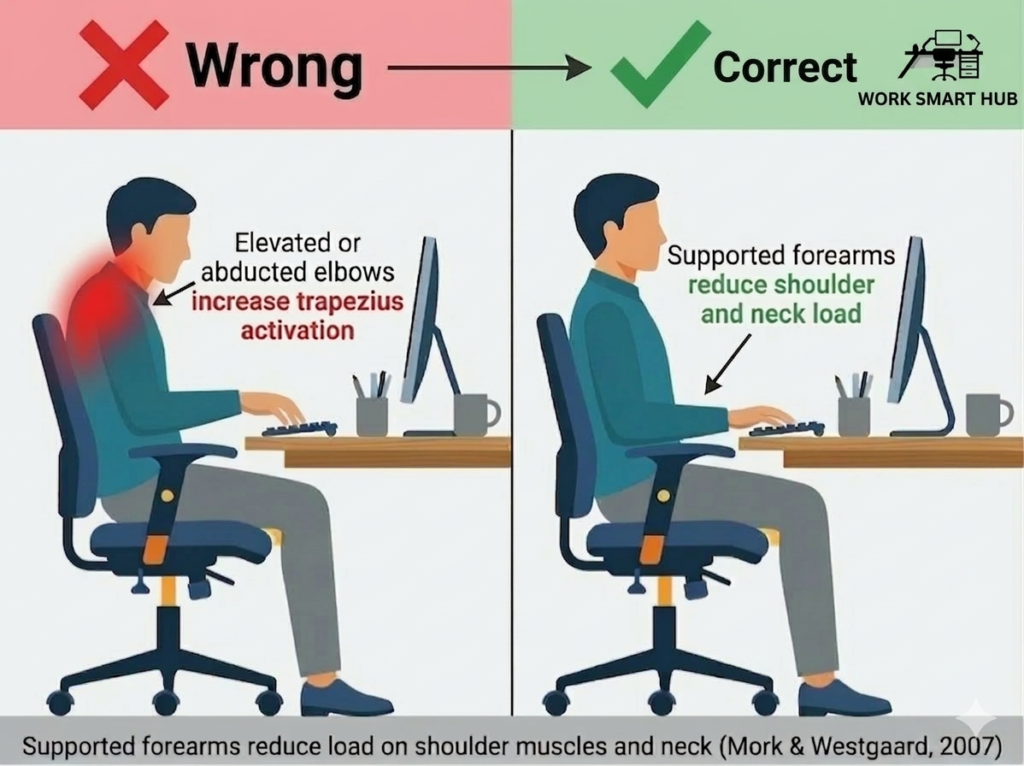
Elbow and forearm position influences shoulder load. Elevated or abducted elbows increase trapezius activation.
How to adjust:
• Elbows hang naturally at ~90°
• Forearms parallel to the floor
• Support forearms lightly on desk or armrests
• Minimise reaching
Research shows that supported forearms reduce load on shoulder muscles and neck (Mork & Westgaard, 2007).
Watch Out For: If your elbows flare out sideways (common when reaching for a far mouse), it dramatically increases trapezius strain. Keep elbows close to your body – even a small abduction adds significant load over hours
Step 4: Keyboard & Mouse Positioning Guidelines
Based on ergonomic evidence and practical use:
• Keyboard centred and slightly below elbow height
• Mouse next to keyboard, same height
• Keyboard slope flat or slightly negative to minimise wrist extension
These align with ergonomic research on repetitive tasks and upper limb strain (Rempel, 2007).
Watch Out For: A keyboard that is too high relative to your elbows often causes wrist extension and shrugged shoulders. Always fine-tune after adjusting chair height — never match keyboard height to the desk surface.
Frequently Asked Questions
Should keyboard height match desk height?
No – it should match elbow and forearm position, not the desk surface. Adjust your chair, then align keyboard height (Rempel, 2007).
Do ergonomic keyboards or mice reduce shoulder strain?
Ergonomic devices can improve wrist alignment, but they don’t automatically fix shoulder or forearm alignment. Keep elbows at ~90° and minimise reaching.
Are wrist rests helpful?
Only if they support neutral wrist posture. Avoid resting wrists heavily on them while typing.
Key Takeaways
• Keyboard and mouse placement directly influences wrist, forearm, and shoulder strain
• Start with chair alignment (linked chair guide)
• Keep devices close, wrists neutral, elbows relaxed
• Adjust setup based on your body, not rigid desk numbers
• Small misalignments over time can cause chronic discomfort or injury
Small setup changes foster long-term comfort and performance creating a Healthy and Ergonomic Office.
References
1. Gerr, F., Marcus, M., Ensor, C., Kleinbaum, D., Cohen, S., Edwards, A., Gentry, E., Ortiz, D. J., & Monteilh, C. (2002). A prospective study of computer users: I. Study design and incidence of musculoskeletal symptoms and disorders. American Journal of Industrial Medicine, 41(4), 221–235. https://doi.org/10.1002/ajim.10066
2. ISO 9241-5:2024. Ergonomic requirements for office work with visual display terminals.
3. Mork, P. J., & Westgaard, R. H. (2007). The influence of body posture, arm movement, and work stress on trapezius activity during computer work. European Journal of Applied Physiology, 101(4), 445–456. https://doi.org/10.1007/s00421-007-0518-4
4. Rempel, D., Barr, A., Brafman, D., & Young, E. (2007). The effect of six keyboard designs on wrist and forearm postures. Applied Ergonomics, 38(3), 293–298. https://doi.org/10.1016/j.apergo.2006.05.001