
Dual Monitor Ergonomics: How to Set Up Two Screens Without Neck Pain
A simple, clinically reviewed guide for office and home workers
Introduction – Why Dual Monitor Ergonomics Matter & Who This Guide Is For
Dual monitors can dramatically boost productivity, less window-switching, better multitasking, smoother workflows. But a poorly configured setup can double neck rotation, eye strain, and shoulder tension compared to a single screen.
Research on computer workstation ergonomics shows that non-neutral monitor positioning leads to increased head rotation, awkward postures, and musculoskeletal discomfort over time (Straker et al., 2008). With two screens, these risks multiply if monitors aren’t centred, height-matched, or angled properly.
Who this guide is for
- Anyone using two monitors (WFH, coding, design, trading, admin, spreadsheets)
- People who added a second screen and now have neck, shoulder, or eye discomfort
- Remote workers optimising dual setups
- Readers who’ve already improved single-monitor ergonomics
This guide builds on our previous monitor set-up principles to help you create a low-strain dual-monitor setup.
Quick Wins — Relief in Under 5 Minutes
- Center both screens in front of you (minimise neck rotation)
- Align the tops of both screens at or slightly below eye level (ISO 9241-5)
- Position monitors at arm’s length (~50–70 cm)
- Match brightness and contrast between screens (Sheedy et al., 2003)
- Angle screens slightly inward (≈10–30°)
- Reduce unnecessary on-screen clutter
These adjustments can quickly reduce neck and visual strain.
Step-by-Step: How to Set Up Dual Monitors Properly
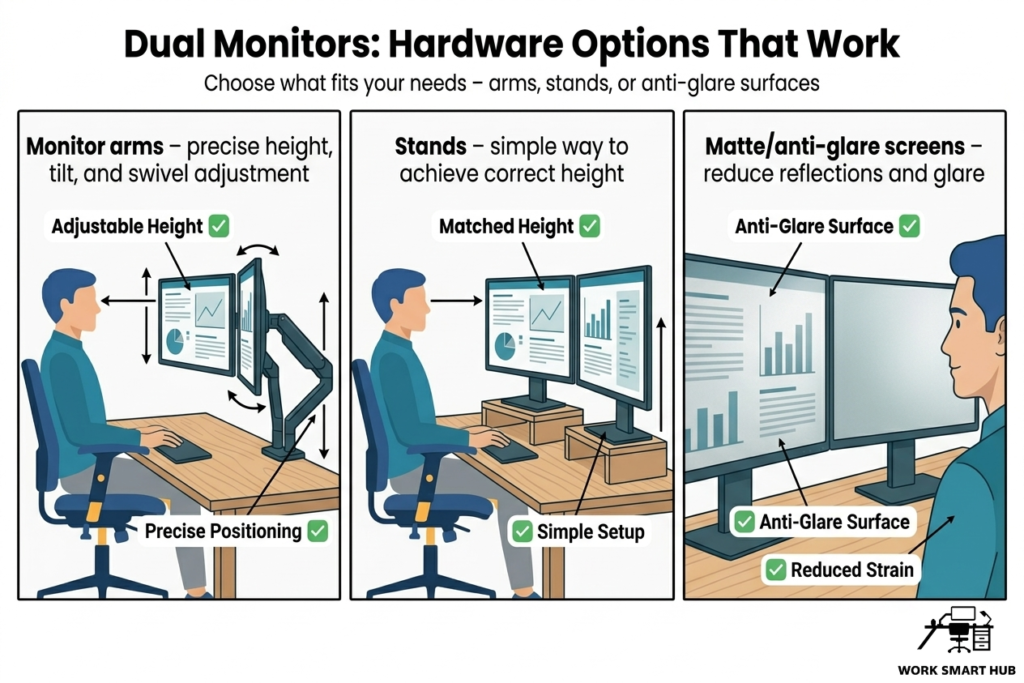
Step 1: Choose the Right Hardware
- Monitor arms – allow precise positioning and adjustment
- Stands – acceptable if height can be matched
- Similar size/resolution – improves visual consistency
- Matte/anti-glare screens — reduce reflections (Sheedy et al., 2003)
Step 2: Set the Correct Height & Distance
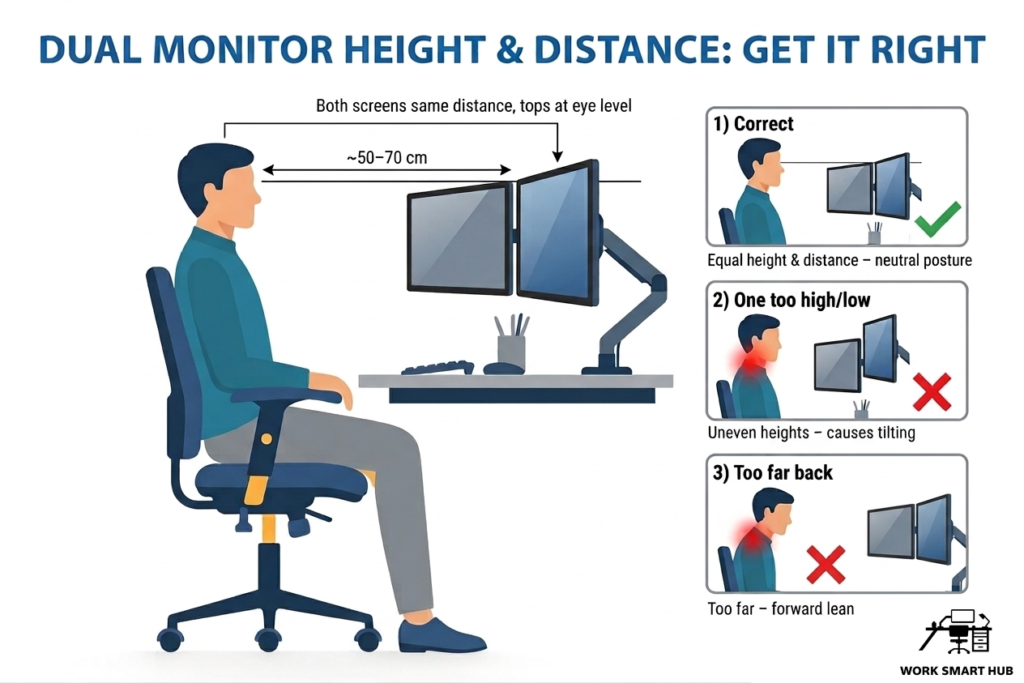
- Top of screens at or slightly below eye level (ISO 9241-5; OSHA, 2020)
- Distance: ~50–70 cm (arm’s length)
- Keep both screens at equal distance to avoid asymmetrical viewing
Avoid vertical stacking unless one screen is clearly secondary.
Step 3: Position & Angle for Minimal Neck Movement
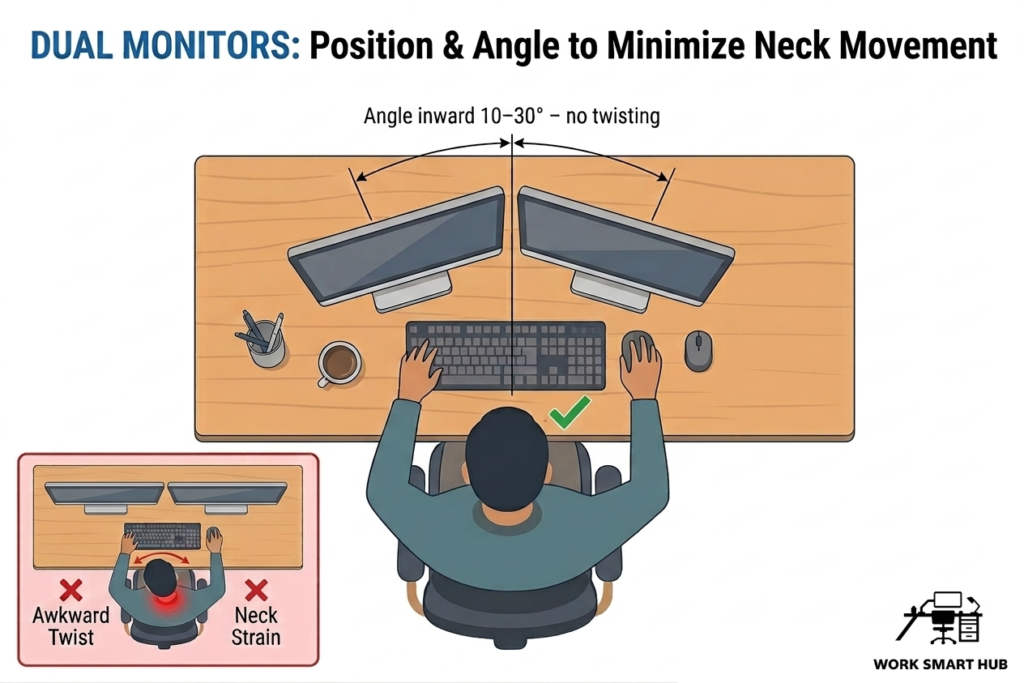
- Primary monitor directly in front
- Secondary monitor to the side, angled inward (~10–30°)
- Centre point between screens should face you straight – no twisting to read either
Research shows that increased head rotation and asymmetric posture are associated with higher discomfort during computer work (Straker et al., 2008).
Step 4: Adjust Lighting & Software
- Avoid glare (position screens perpendicular to windows)
- Match brightness/contrast across screens (Sheedy et al., 2003)
- Use window management tools to reduce visual searching
- Enable night mode if needed
Proper visual and office lighting ergonomics reduces eye strain and visual fatigue.
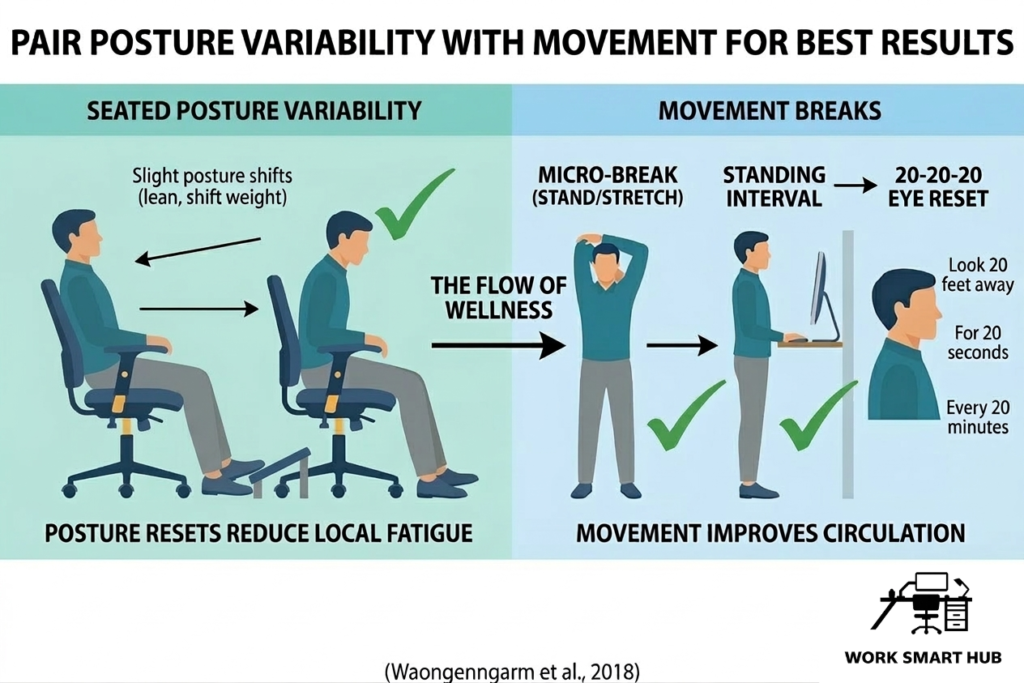
Step 5: Use Dynamically
- Alternate primary/secondary monitor use when possible
- Follow the 20-20-20 rule (American Optometric Association)
- Shift posture regularly (O’Sullivan et al., 2012)
- Take movement breaks (Waongenngarm et al., 2018)
Static posture, not just monitor setup is a major contributor to discomfort.
Common Mistakes to Avoid
- Uneven monitor heights
- Screens too far away (causing forward lean)
- No inward angling (increases neck rotation)
- Laptop screen too low
- Glare on one screen only
- Staying in one fixed posture all day
Frequently Asked Questions
Should both monitors be the same size?
Not essential, but similar size and resolution improve visual consistency.
Is vertical monitor setup okay?
Yes, for specific tasks – but keep primary monitor at eye level.
Laptop + monitor setup?
Raise laptop to avoid downward neck flexion.
How do I reduce eye strain?
Match brightness, reduce glare, and take regular visual breaks (Sheedy et al., 2003).
Monitor arms vs stands – which is better?
Arms win for flexibility – they allow precise positioning, which improves ergonomic alignment.
Does dual setup cause more pain?
Only if poorly configured. Proper positioning minimises additional strain.
Key Takeaways
- Poor dual-monitor setup can increase neck rotation and discomfort
- Keep screens centred, aligned, and at equal distance
- Angle inward slightly to reduce head movement
- Match visual settings across screens
- Combine with movement, posture variability, and breaks
References
American Optometric Association. (n.d.). Computer vision syndrome and the 20-20-20 rule. https://www.aoa.org/healthy-eyes/caring-for-your-eyes/20-20-20-rule
ISO 9241-5:2024. Ergonomic requirements for office work with visual display terminals.
O’Sullivan, K., O’Keeffe, M., O’Sullivan, L., & O’Sullivan, P. (2012). The effect of dynamic sitting on low back pain: A systematic review. Ergonomics. https://doi.org/10.1080/00140139.2012.676674
OSHA. (2020). Computer Workstations eTool. https://www.osha.gov/etools/computer-workstations
Sheedy, J. E., Hayes, J. R., & Engle, J. (2003). Is all asthenopia the same? Optometry and Vision Science, 80(11), 732–739. https://doi.org/10.1097/00006324-200311000-00011
Straker, L., Burgess-Limerick, R., Pollock, C., & Egeskov, R. (2008). The impact of computer display height and desk design on 3D posture during information technology work. Applied Ergonomics. https://doi.org/10.1016/j.apergo.2007.10.002
Waongenngarm, P., Areerak, K., & Janwantanakul, P. (2018). The effects of breaks on low back pain, discomfort, and productivity in office workers. Applied Ergonomics, 68, 230–239. https://doi.org/10.1016/j.apergo.2017.12.003